
Configuring clusters
Тarantool Cluster Manager features a built-in text editor for Tarantool EE cluster configurations.
When you connect a cluster to TCM, it gains access to the cluster's centralized configuration storage: an etcd or a Tarantool cluster. TCM has both read and write access to the cluster configuration. This enables the configuration editor to work in two ways:
- If a configuration already exists, the editor shows its current state.
- When you change the configuration in the editor and apply changes, they are sent to the configuration storage.
To learn how to write Tarantool cluster configurations, see configuration.
The configuration editor is available on the Cluster > Configuration page.
To start managing a cluster's configuration, select this cluster in the Cluster drop-down and go to the Configuration page.
A cluster configuration in TCM can consist of one or multiple YAML files. When there are multiple files, they are all considered parts of a single cluster configuration. You can use this for structuring big cluster configurations. All files that form the configuration of a cluster are listed on the left side of the Cluster configuration page.
To add a cluster configuration file, click the plus icon (+) below the page title.
To open a configuration file in the editor, click its name in the file list.
To delete a cluster configuration file, click the Delete button beside the filename.
To download a cluster configuration file, click the Download button beside the filename.
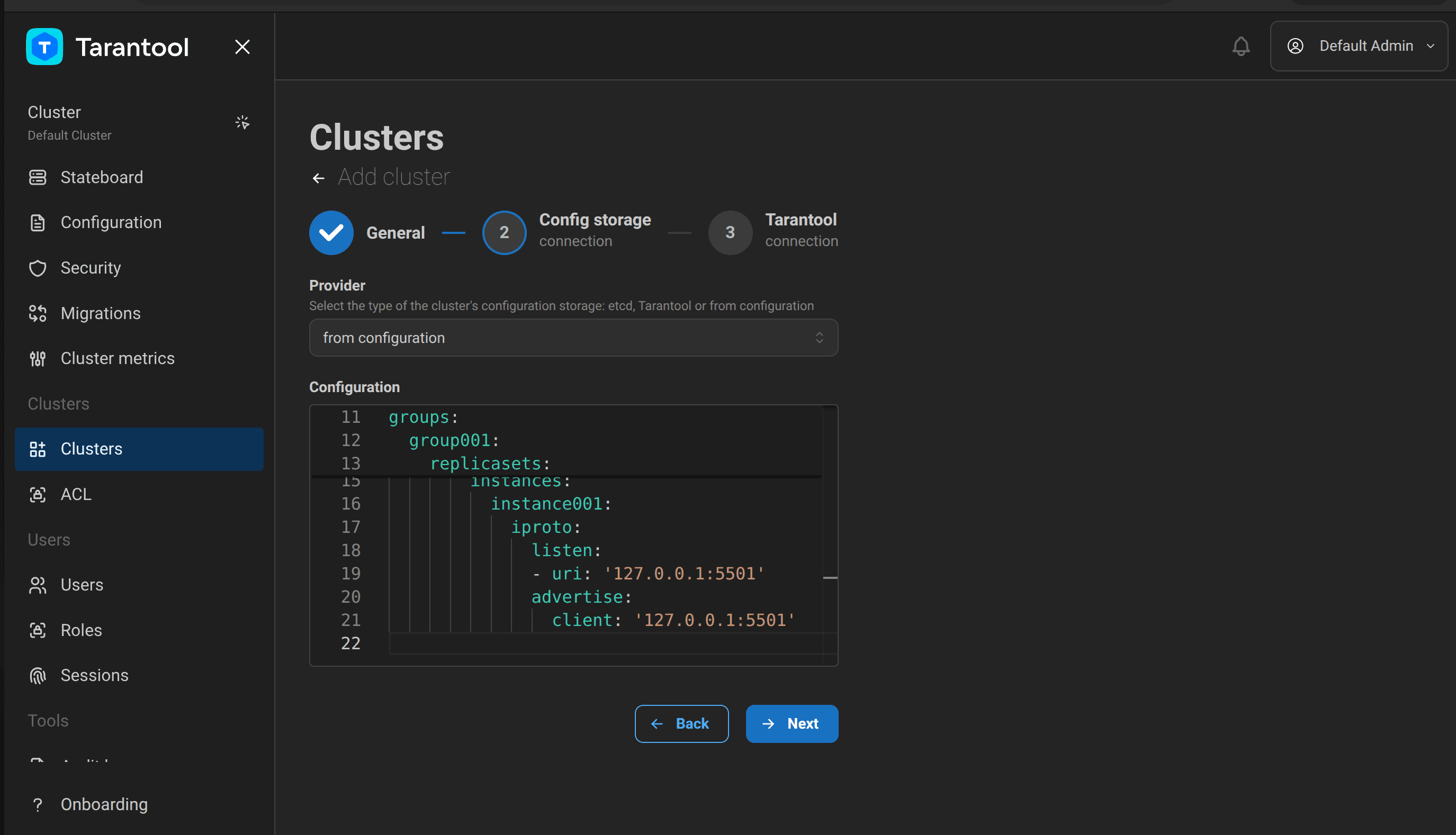
When you add or edit a cluster, the Provider field on the Config storage connection step offers the from configuration option, alongside etcd and tarantool. It lets you create a TCM cluster based on a configuration that you specify directly in the cluster addition wizard, without connecting to a separate centralized configuration storage.

To create a cluster from a configuration:
- Go to the Clusters page and click Add (to change the provider of an already connected cluster, click Edit in the Actions menu of the corresponding table row).
- Fill in the general cluster information on the General step.
- On the Config storage connection step, select the from configuration provider.
- Enter the cluster configuration in the code editor that opens and click Next.
- On the Tarantool connection step, specify the credentials for accessing the cluster instances: the Tarantool username, password, and SSL parameters, if traffic encryption is enabled on the cluster.
If you select tarantool as the configuration storage provider on the Config storage connection step, and the specified configuration storage is a TbCS cluster (a cluster with Tarantool-based storage), the Add TbCS cluster button becomes available after a successful connection check (Connection test).
To create a TbCS cluster from the specified connection data:
- On the Config storage connection step, select the tarantool provider and specify the connection data for TbCS.
- Click Connection test and wait for the connection check to succeed.
- Click Add TbCS cluster.
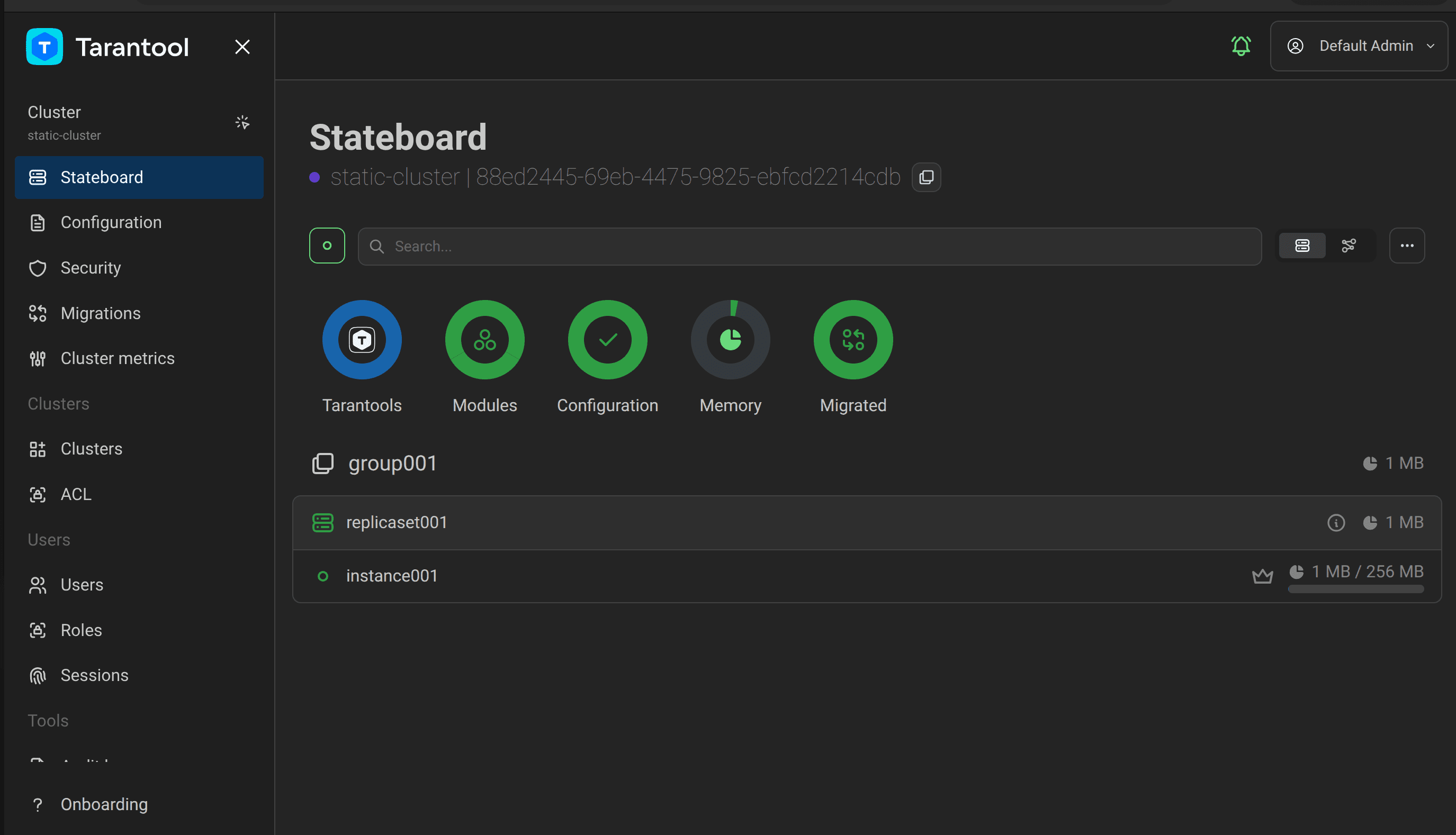
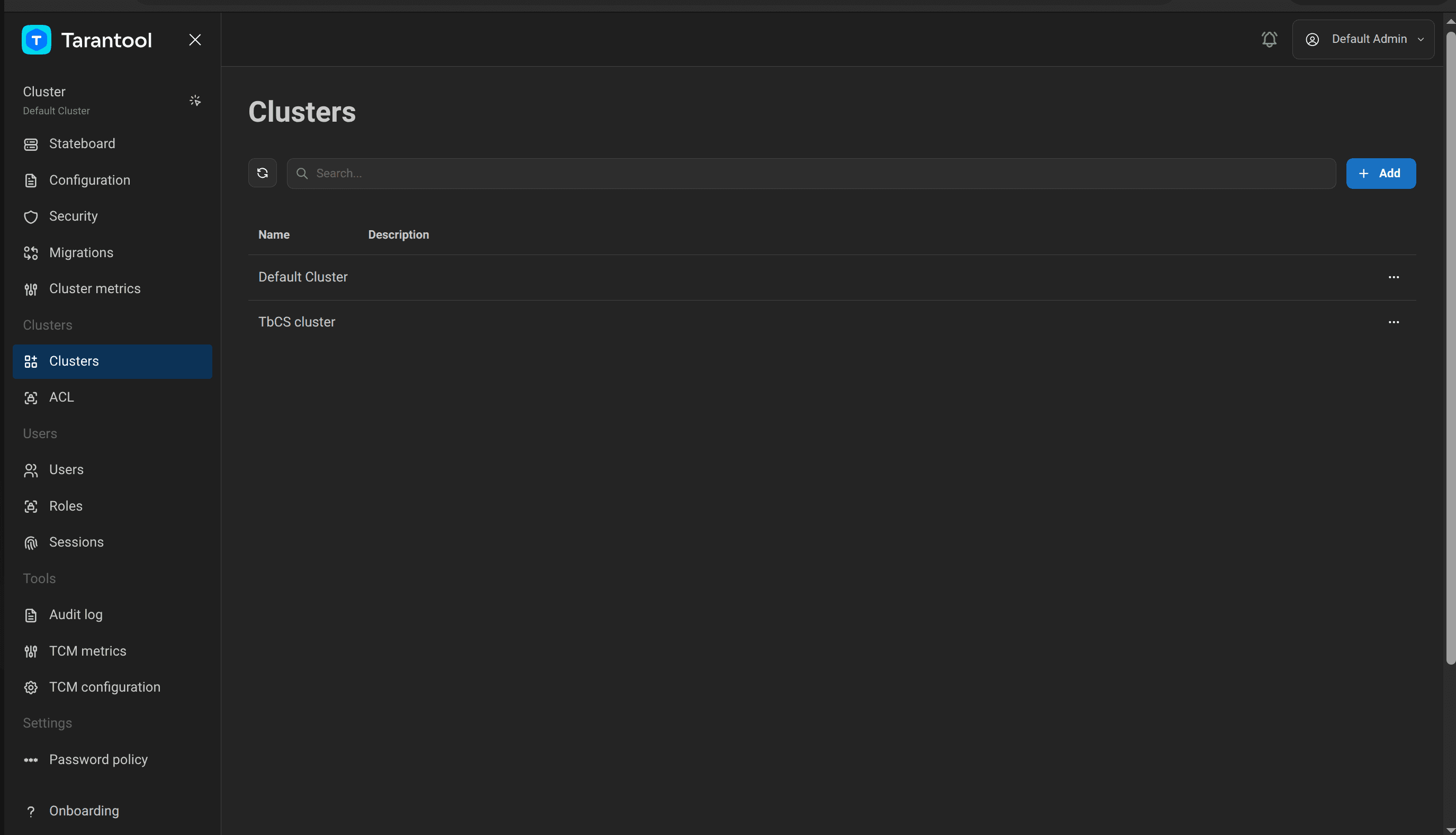
TCM connects to the specified TbCS cluster, reads its configuration, and creates the cluster immediately with the full configuration and URLs of all its instances — without the need to fill in the remaining wizard steps manually. After the cluster is created successfully, TCM redirects you to the page of the created cluster, and the cluster appears in the general list on the Clusters page.
This option is not available for the etcd and from configuration providers.
TCM can store configurations drafts. If you want to leave an unfinished configuration and return to it later, save it in TCM. Saving applies to whole cluster configurations: it records the edits of all files, file additions, and file deletions.
To save a cluster configuration draft after editing, click Save in the Cluster configuration page.
All unsaved changes are discarded when you leave the Cluster configuration page.
If you have a saved configuration draft, you can reset the changes for each of its files individually. A reset returns the file into the state that is currently used by a cluster (that is, saved in the configuration storage). If you reset a newly added file, it is deleted.
To reset a saved configuration file, click the Reset button beside the filename.
When you finish editing a configuration and it's ready to use, apply the updated configuration to the cluster. To apply a cluster configuration, click Apply on the Cluster configuration page. This sends the new configuration to the cluster configuration storage, and it comes into effect upon the cluster configuration reload.